OwlTree PCIe 3.0 eGPU Dock Review: Specs, Pros and Cons
As an Amazon Associate we earn from qualifying purchases. Links on this page are affiliate links.
This owltree pcie 3 0 x16 22gbps review covers a dock that connects external graphics cards to your computer. It uses a PCIe 3.0 x16 interface for the GPU slot. The data link relies on a JHL6340 controller to provide a maximum bandwidth of 22Gbps. You get a Thunderbolt 4 cable included for the connection. This setup lets you add desktop-level graphics power to portable devices. The dock supports both NVIDIA and AMD cards, provided they have official drivers. It is designed for users who need extra rendering or gaming performance without replacing their main machine.
What stands out
- PCIe 3.0 x16 slot for standard desktop graphics cards
- 22Gbps transfer speed via JHL6340 controller
- Compatible with Thunderbolt 3, Thunderbolt 4, and USB4 ports
- Supports Windows 10, Windows 11, and Linux systems
- Four flexible power input options including Molex and DC5521
Who it fits
Good fit for
This dock suits users with Thunderbolt-enabled laptops or USB4 devices who want to use powerful desktop GPUs. It is ideal for video editors, AI art creators, and gamers running AAA titles on portable hardware. The wide compatibility with NVIDIA and AMD cards means you can pick a card that fits your budget and performance needs. If you run Windows 10, Windows 11, or Linux, this hardware provides a stable way to expand your graphics capabilities without internal upgrades.
Who should skip it
You should look elsewhere if your device lacks a Thunderbolt or USB4 port. This dock requires an Intel or AMD processor with compatible external display output. It is not suitable for users who prefer plug-and-play simplicity without driver management. Also, avoid this if you need higher bandwidth than 22Gbps offers, as PCIe 3.0 limits data throughput compared to newer standards. Systems with limited power supply options for the Molex or DC inputs may also find the setup challenging.
Verdict: The OwlTree dock offers a practical way to add desktop GPU power to compatible portable devices. Its spec-focused design supports a wide range of graphics cards for users who need flexible external graphics solutions.
OwlTree eGPU Key Specs Explained
Interface Standard: PCIE 3.0
This specification defines the communication protocol between your external graphics card and the dock. PCIe 3.0 is the underlying architecture that allows data to flow from your computer to the GPU. You should know that this is the third generation of this standard. It provides a stable foundation for most modern graphics cards. However, it does not offer the highest possible data speeds available in newer standards. This is the baseline requirement for the device to function correctly with your hardware.
Slot Configuration: x16
The x16 designation refers to the physical slot size on the dock that accepts your graphics card. This is the standard full-length slot used by almost all desktop GPUs. It ensures that your NVIDIA or AMD card will fit securely into the dock. You do not need to worry about compatibility with smaller slots. This configuration allows for maximum lane availability within the PCIe 3.0 limits. It is the standard choice for high-performance graphics cards and ensures proper physical connection.
Maximum Bandwidth: 22Gbps
This number represents the maximum data transfer speed of the connection between your computer and the dock. The device uses a JHL6340 controller to achieve this rate. A bandwidth of 22Gbps is sufficient for many gaming and creative tasks. You will experience stable performance for video editing and AAA gaming. It is important to compare this with faster Thunderbolt 4 or 5 links. This speed dictates how quickly images move from your CPU to the GPU.
Thunderbolt 4 Cable Included
The package includes a high-quality standard Thunderbolt 4 cable measuring 23.6 inches. This cable connects the dock to your computer. You need this specific cable to utilize the full bandwidth of the device. It ensures a reliable connection for data and power. Having it included means you do not need to purchase a separate cable. This simplifies the setup process. You can plug it in and start configuring your external graphics card immediately without extra purchases.
Design and Build Overview
According to the listing, the OwlTree eGPU dock is built around a standard PCIe 3.0 x16 slot. This configuration allows you to install most desktop graphics cards. The design prioritizes compatibility with NVIDIA and AMD cards that have official drivers. You can use a wide range of GPUs, from high-end models to older GTX 450 cards. The dock does not support Intel graphics cards. This choice means you must verify your specific GPU is supported before purchasing.
The unit includes a high-quality Thunderbolt 4 cable measuring 23.6 inches. It also provides a 24-pin power jumper cable. These components help you connect the dock to your computer and power the internal card. The design supports four different power input options. You can choose between a CPU 4+4-pin connector, a Molex connector, PD 3.0 at 12V max 60W, or DC5521 at 12V max 120W. This flexibility lets you use various power supplies depending on your setup. It is useful if you have spare cables or specific power bricks available.
The dock uses a JHL6340 controller to manage data transfer. This controller delivers speeds around 22Gbps. The listing notes this offers better stability for Windows 10 and Windows 11. The design is intended for users who need to connect external GPUs to laptops, desktops, or consoles with Thunderbolt ports. The physical layout focuses on functional connectivity rather than aesthetic features. You should ensure your device has the necessary Thunderbolt or USB4 port to use this dock effectively.
Setup And Daily Use Guide
Setting up this dock involves connecting your chosen graphics card to the PCIe 3.0 x16 slot. You must then link the dock to your host device using the included Thunderbolt 4 cable. The listing notes that the cable is 23.6 inches long. Power configuration is a key step. The unit offers four input options, allowing you to select one method that fits your setup. You can use a 4+4-pin CPU connector, a Molex connector, a PD 3.0 input capped at 12V and 60W, or a DC5521 input limited to 12V and 120W. You only need to connect one of these sources.
Compatibility extends to most Windows 10 and 11 systems, as well as Linux-based computers and certain consoles like the Lenovo Legion Go. The host device requires a Thunderbolt port and an Intel or AMD processor. Support also covers USB4 and Thunderbolt 3 connections. For some consoles with USB4, a BIOS update may be necessary to enable functionality. The dock utilizes the JHL6340 controller to manage data transfer. This controller delivers speeds around 22Gbps. This bandwidth supports tasks like graphics work, video editing, AI art generation, and AAA gaming. The listing states that this configuration offers better stability on Win10 and Win11. You can use any GPU with official NVIDIA or AMD drivers, ranging from high-end models to older cards like the GTX 450. Intel-based graphics cards are not supported. The package includes the dock, the cable, and a 24Pin power jumper cable to assist with your initial installation.
Check Compatibility And Power Needs
Before you install any GPU, verify your host device supports Thunderbolt 3, Thunderbolt 4, or USB4. Most Windows 10 or 11 laptops and desktops with Intel or AMD processors work, but you may need a BIOS update for some USB4 consoles like the Lenovo Legion Go. Ensure your chosen graphics card has official drivers on the NVIDIA or AMD websites. The dock supports cards from the GTX 450 to the RTX 5090, but avoid Intel graphics cards. You must select one power input method: CPU 4+4-pin, Molex, PD 3.0, or DC5521. The included Thunderbolt 4 cable is 23.6 inches long, so check your desk setup. Regularly clean dust from the PCIe slot to maintain the 22Gbps stability provided by the JHL6340 controller. This dock fits alongside standard internal cards by adding external flexibility for video editing or gaming when internal space is limited.
Check before you buy
- Verify your device has Thunderbolt 3, 4, or USB4 support.
- Confirm your GPU has official NVIDIA or AMD drivers.
- Choose one power input: CPU, Molex, PD 3.0, or DC5521.
- Ensure your laptop or desktop runs Windows 10 or 11.
The product at a glance
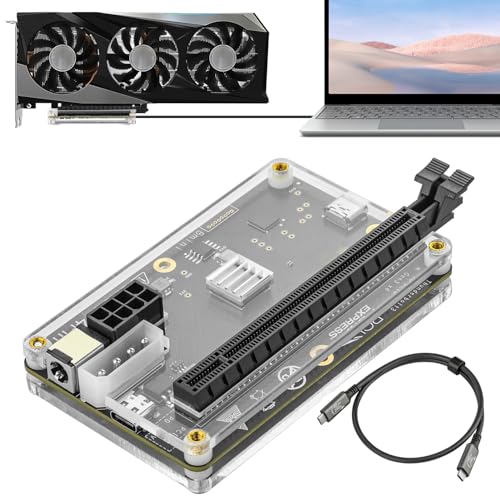
OwlTree PCIe 3.0 eGPU Dock with Thunderbolt 4 Cable
Best for: Thunderbolt laptops needing NVIDIA or AMD GPU expansion
- Interface Standard
- PCIE 3.0
- Slot Configuration
- x16
- Maximum Bandwidth
- 22Gbps
View on Amazon: OwlTree PCIe 3.0 eGPU Dock with Thunderbolt 4 Cable Affiliate link
This OwlTree dock connects an external graphics card to your computer via a Thunderbolt 4 cable. It uses a PCIe 3.0 x16 interface with a maximum bandwidth of 22Gbps. The unit supports Windows 10, Windows 11, and Linux systems. It works with most NVIDIA and AMD graphics cards. You can choose from four different power input options to match your needs.
Pros
- Supports PCIe 3.0 x16 slot configuration
- Delivers 22Gbps transfer speed via JHL6340 controller
- Accepts four power input types including Molex and DC5521
- Compatible with NVIDIA and AMD graphics cards
Cons
- Limited to PCIe 3.0 bandwidth instead of newer standards
- Requires a separate external power supply for the dock
- Does not support Intel graphics cards
Good fit if
- You need to connect an NVIDIA or AMD GPU to a Thunderbolt 3 or 4 port
- You want flexible power options for your external setup
- You use Windows 10, Windows 11, or Linux
Skip if
- You require PCIe 4.0 or 5.0 bandwidth for maximum performance
- You plan to use Intel graphics cards
- You prefer a single power cable solution without adapters
Verdict: OwlTree PCIe 3.0 x16 eGPU Dock is a practical solution for users with Thunderbolt laptops who need to add NVIDIA or AMD graphics power. It offers flexible power choices but is limited by its older PCIe 3.0 speed.
Specifications side by side
| Spec | OwlTree PCIe 3.0 eGPU Dock with Thunderbolt 4 Cable |
|---|---|
| Interface Standard | PCIE 3.0 |
| Slot Configuration | x16 |
| Maximum Bandwidth | 22Gbps |
| Interface | PCIe 3.0 |
Frequently asked questions
Does this dock support both NVIDIA and AMD graphics cards?
Yes, the OwlTree PCIe 3.0 eGPU Dock works with both NVIDIA and AMD GPUs. The product is designed as a practical solution for users needing expansion for either brand. It supports cards that have official drivers, ensuring broad compatibility for your specific graphics hardware choice.
What is the maximum bandwidth speed of this eGPU dock?
The dock provides a maximum bandwidth of 22Gbps. This speed is determined by its PCIe 3.0 x16 interface standard. While functional, this speed is older compared to newer standards, which may impact data transfer rates for high-performance tasks.
Is the Thunderbolt cable included with the dock?
Yes, the package includes a Thunderbolt 4 cable. The listing specifies that this cable is 23.6 inches long. You use this cable to connect the dock to your host device, establishing the necessary link for external graphics performance.
What type of interface does the OwlTree eGPU use?
It uses a PCIe 3.0 x16 interface. This defines the communication protocol between your computer and the external graphics card. It is the underlying architecture that allows data to flow from your host device to the installed GPU slot.
Can I use this dock with a USB4 port?
You should verify compatibility with your specific USB4 device. The product data notes that some USB4 consoles, such as the Lenovo Legion, may require a BIOS update to work correctly. Always check your host device specifications before purchasing.
Who is this eGPU dock best suited for?
It is best for Thunderbolt laptops needing NVIDIA or AMD GPU expansion. The dock offers a practical way to add graphics power to portable devices. It is ideal for users who want to upgrade their external graphics capabilities without replacing their main computer.